The example used here
Each plan has a 3-month commitment. The screenshots use sample patients on these plans.
How credit behaves
- Credit is added when a month is paid. It can be spent the same day.
- It works on anything. Visits, injections, packages, retail. If the sale is bigger than the balance, the member pays the rest another way in the same checkout.
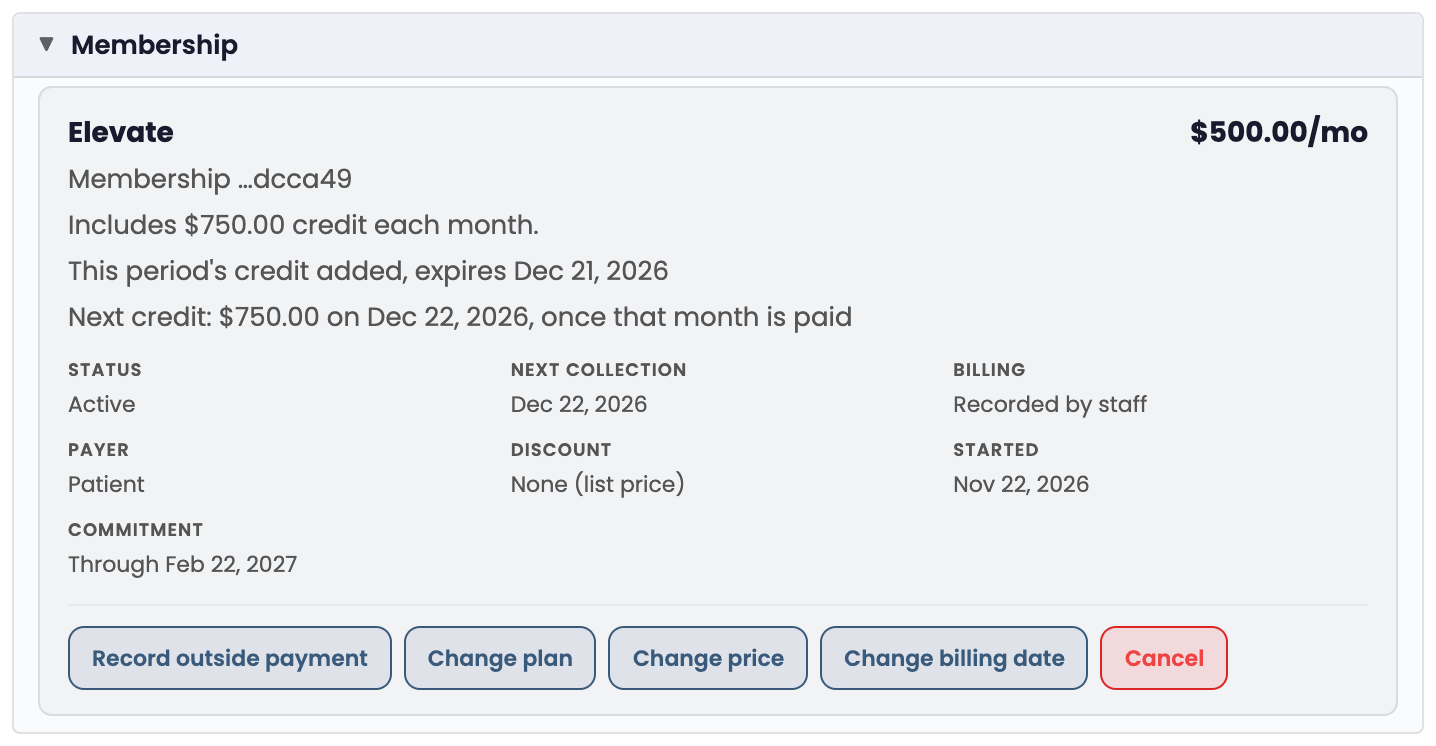
- It expires at the end of the paid month. A month paid on November 22 runs through December 21, and that is the credit's last day. The next month's credit arrives December 22.
- Soonest to expire is spent first, so a member never loses older credit while newer credit sits unused.
- A returned item puts the credit back with the same expiry date it had before.
- Paying a month early does not unlock it early. The credit shows as paid and on the way, and lands on the first day of that month.
Set up a plan
Billing → Plans → click a plan, or add a new one
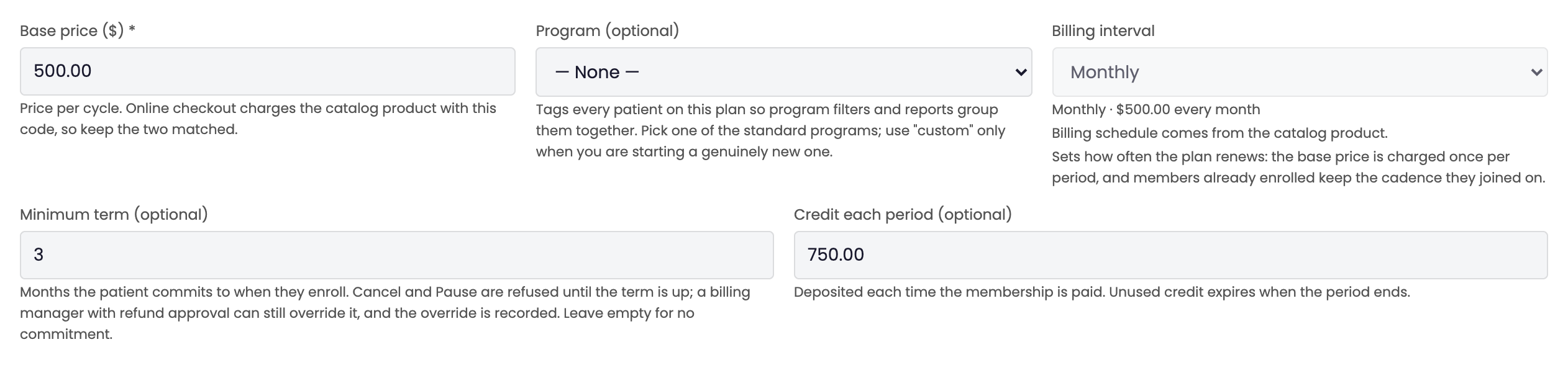
A credit plan is an ordinary membership plan with two extra fields filled in. Credit each period is the amount the member receives each time the membership is paid. Minimum term is the commitment in months.

Enroll a member
Patient chart → Billing tab → Record outside-payment membership
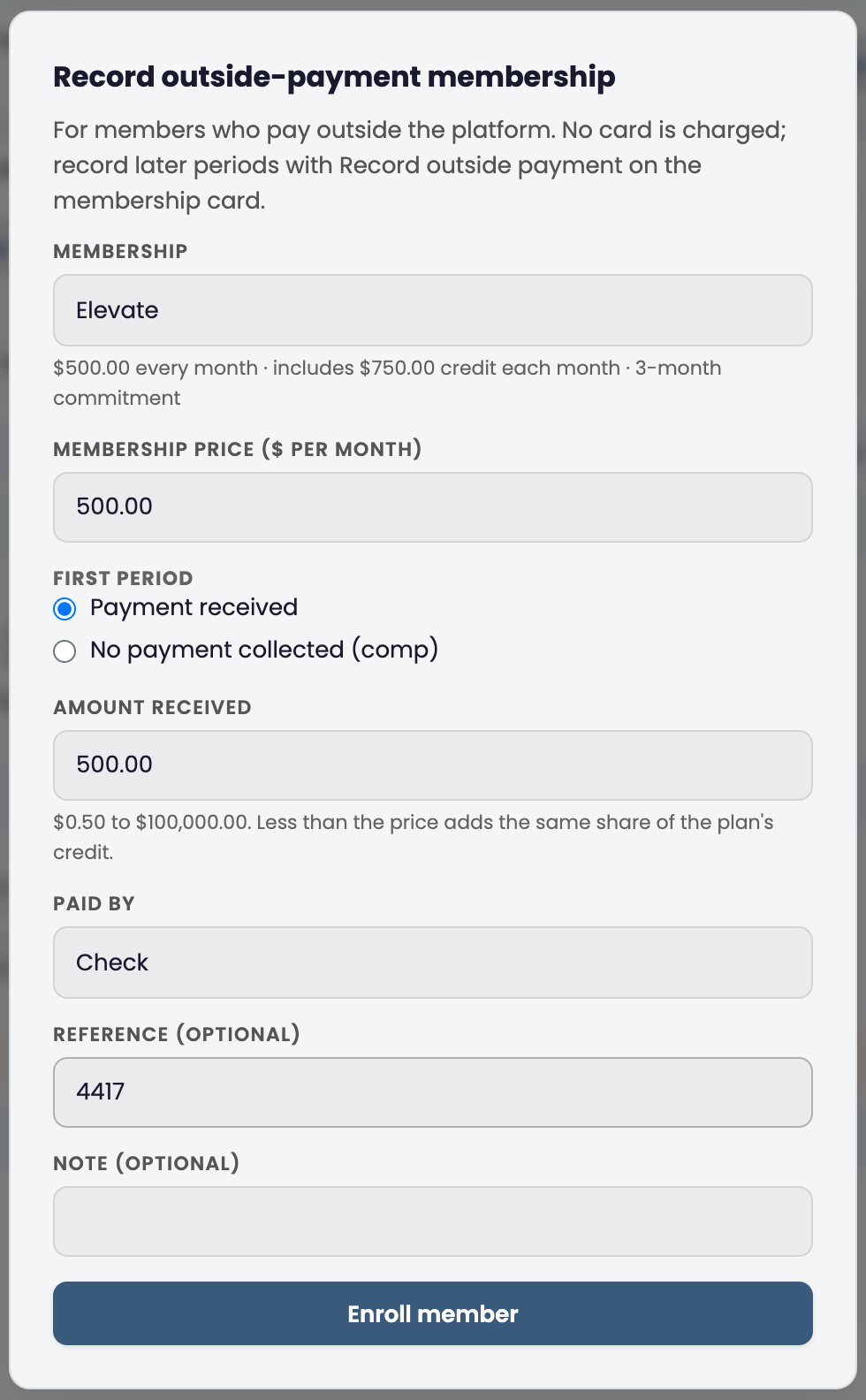
- Pick the membership. The line under it confirms the price, the credit and the commitment.
- Leave Payment received selected and choose how it was paid. For a check, put the check number in Reference.
- Click Enroll member.
The confirmation reads: "Elevate, $500.00 by check #4417, paid through Dec 22; $750.00 credit added, expires 12/21/2026." The membership card and the green credit bar at the top of the Billing tab now show it.

Click Receipt on the payment row to print or save the member's receipt. It names the plan, how it was paid, and the dates the payment covers.

Spend credit
Patient chart → Billing tab → New Charge
- Add what the member is buying.
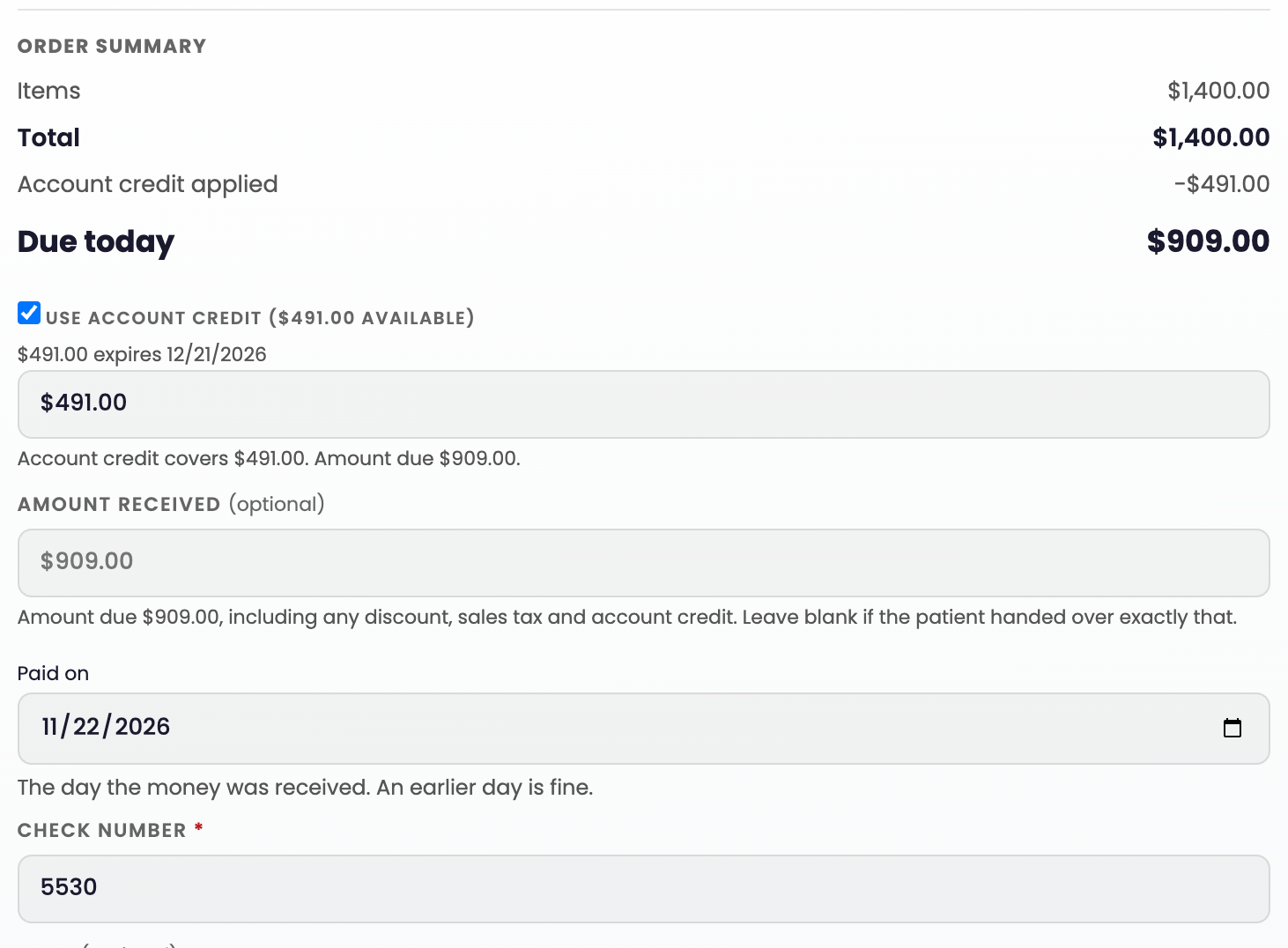
- Tick Use account credit. The amount fills in for you, up to the balance.
- Record the payment. When credit covers everything, Due today is $0.00.
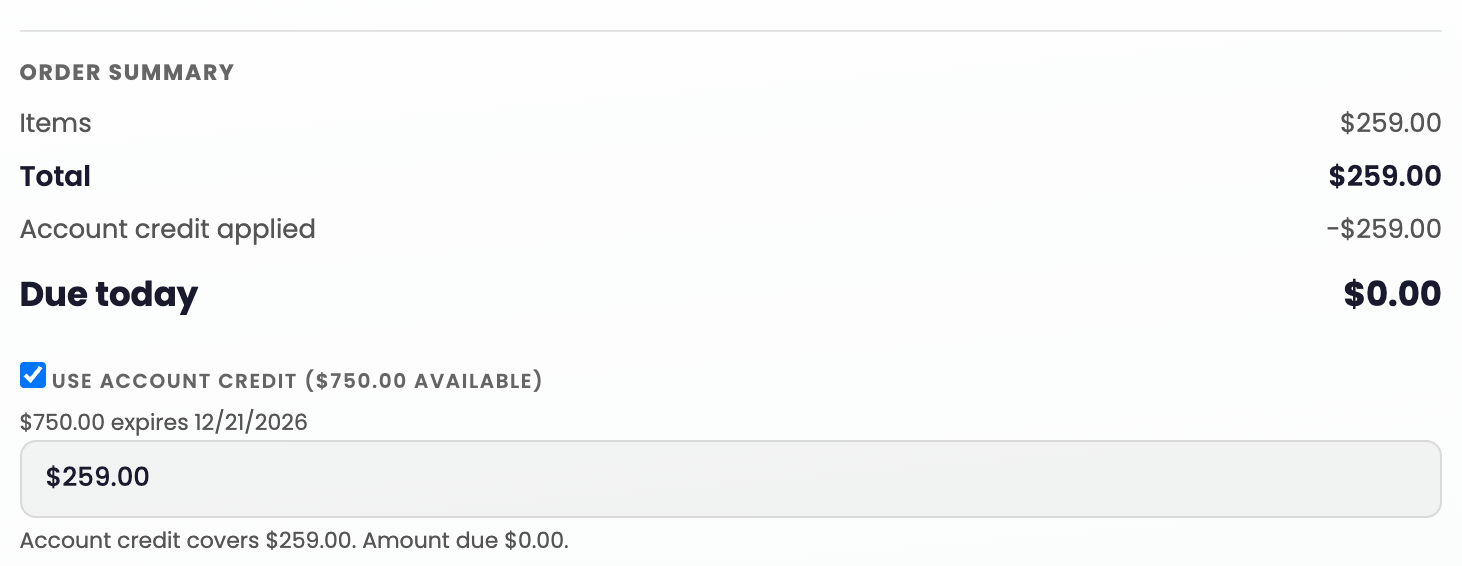
The confirmation states that nothing was collected and shows the balance left.

The credit box never lets you apply more than the balance. The member's receipt shows the sale as paid by account credit.

When the sale is bigger than the balance
Same checkout. Tick Use account credit and the remaining amount becomes what you collect by check, cash or card.
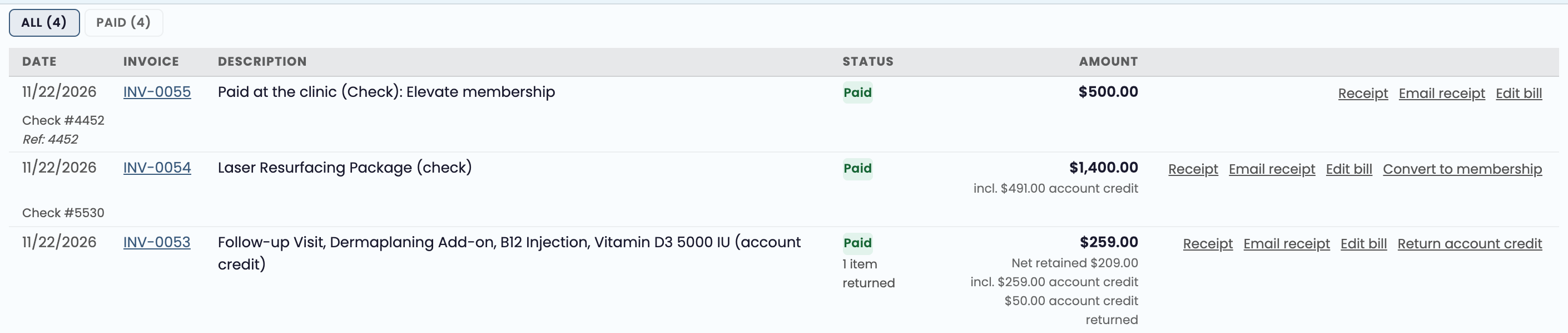
The patient's Payments list shows how each sale was paid, how much of it was credit, and anything returned.
Return an item bought with credit
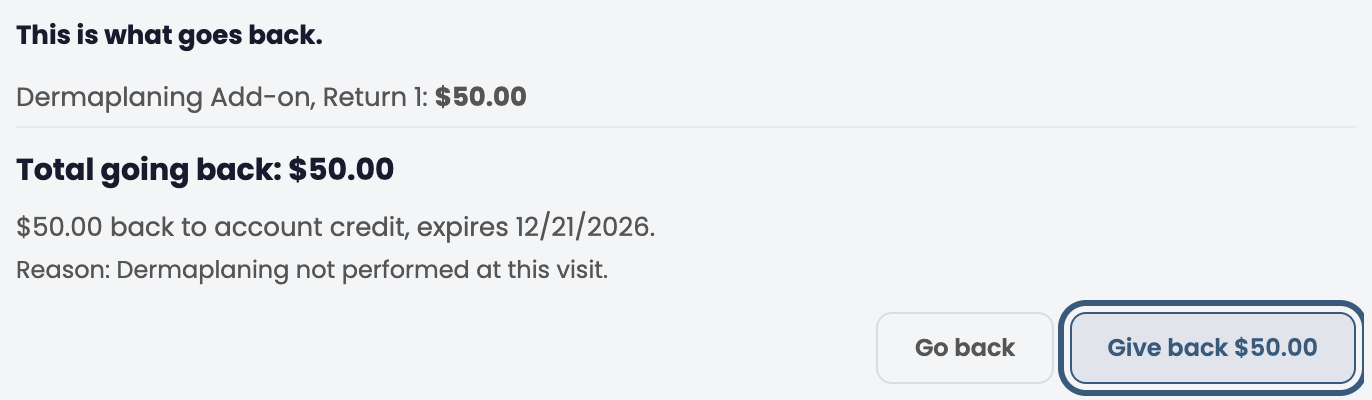
Payments row → Edit bill → Return it on the item → To account credit → Review changes
Give a reason, review, and confirm. The review screen states exactly what goes back and when it expires.
Click History on the green credit bar to see every deposit, spend and return for the patient.

Record the next month
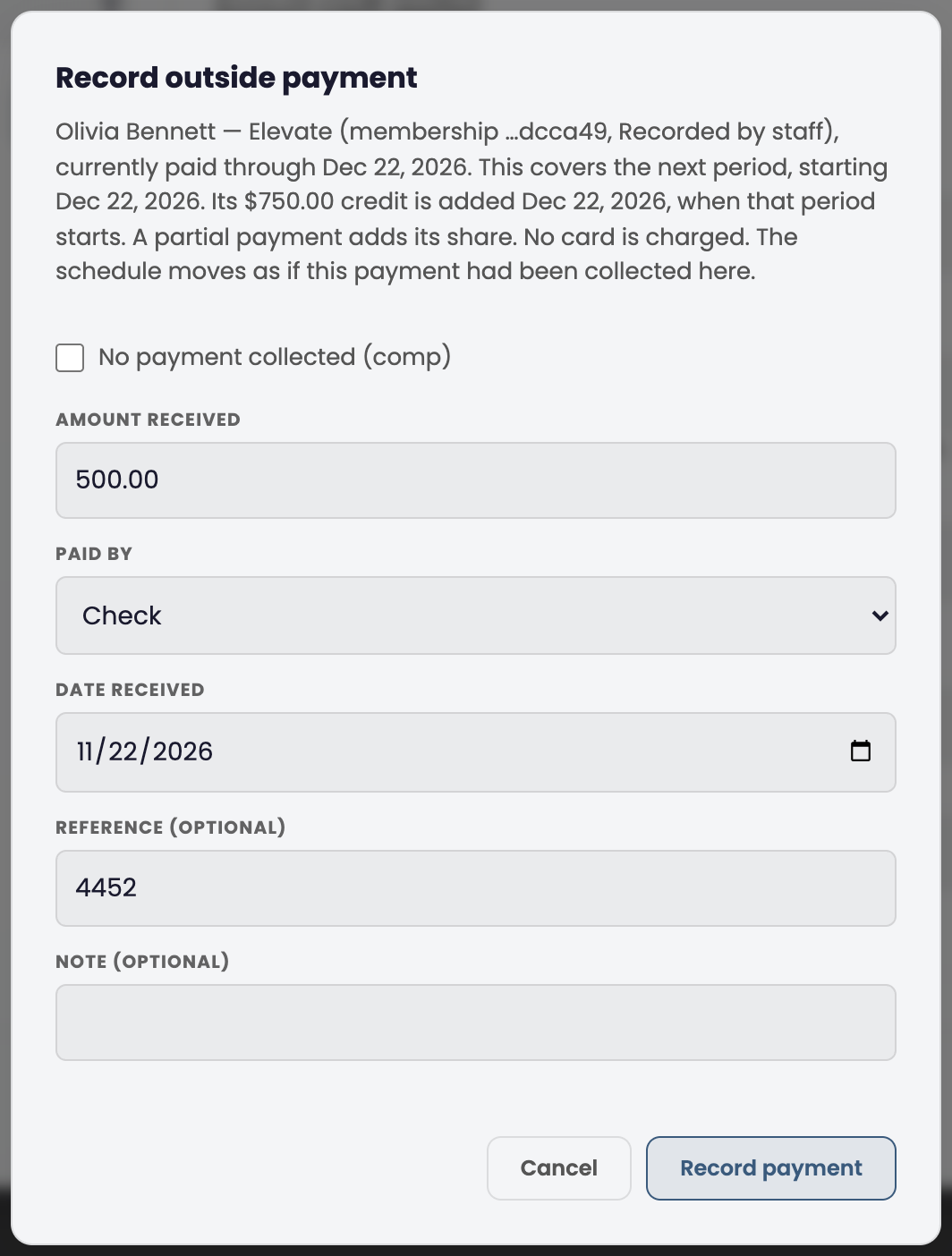
Membership card → Record outside payment
The dialog tells you which month the payment covers and the day its credit is added. Enter the amount, method and check number, then Record payment.
If the member pays before the month starts, the card shows the credit as paid and on the way. The spendable balance does not change until that day.
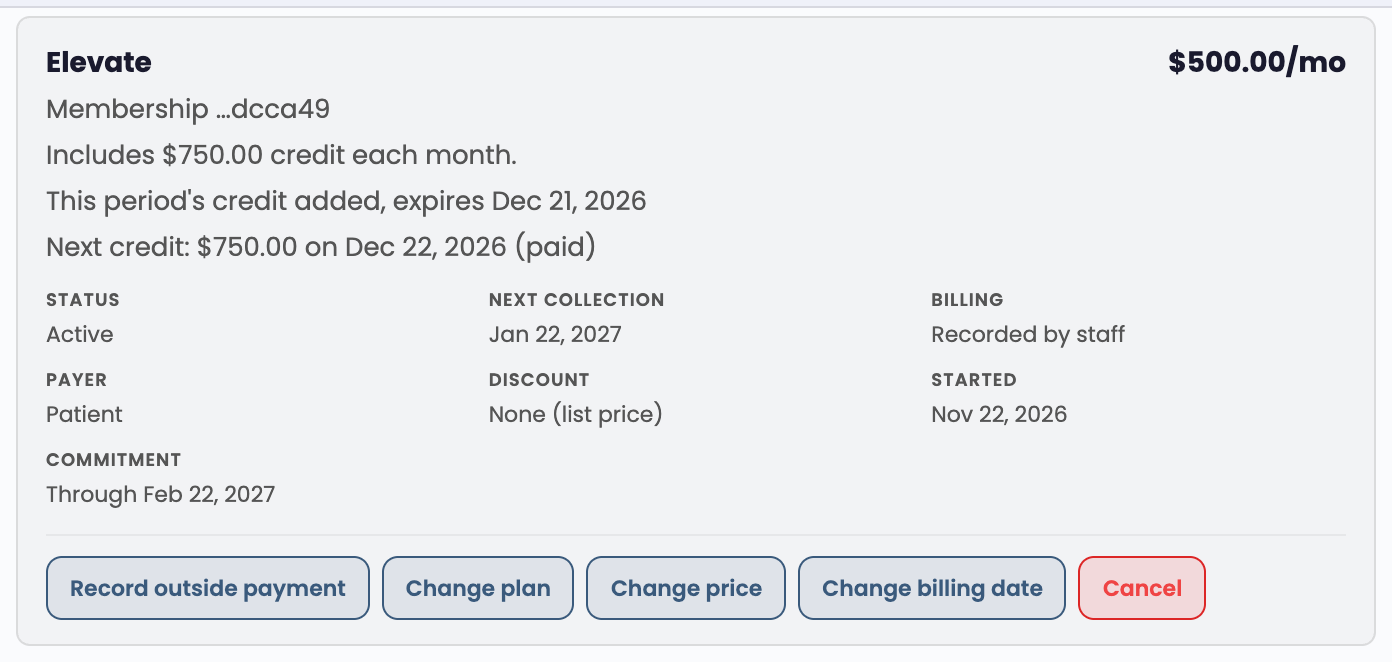
Change plan, price or billing date
Membership card → Change plan, Change price or Change billing date
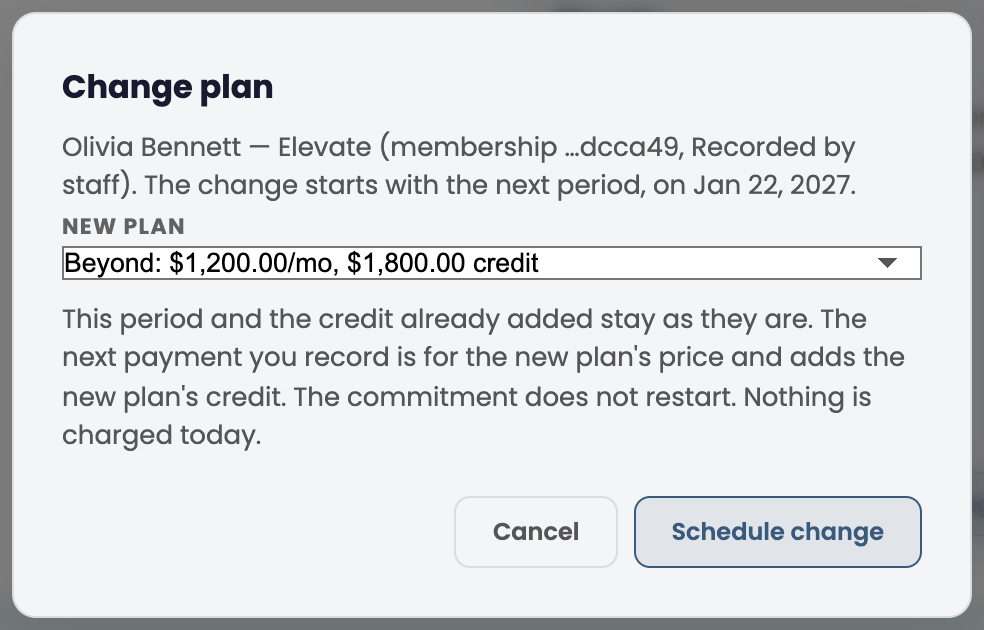
Change plan
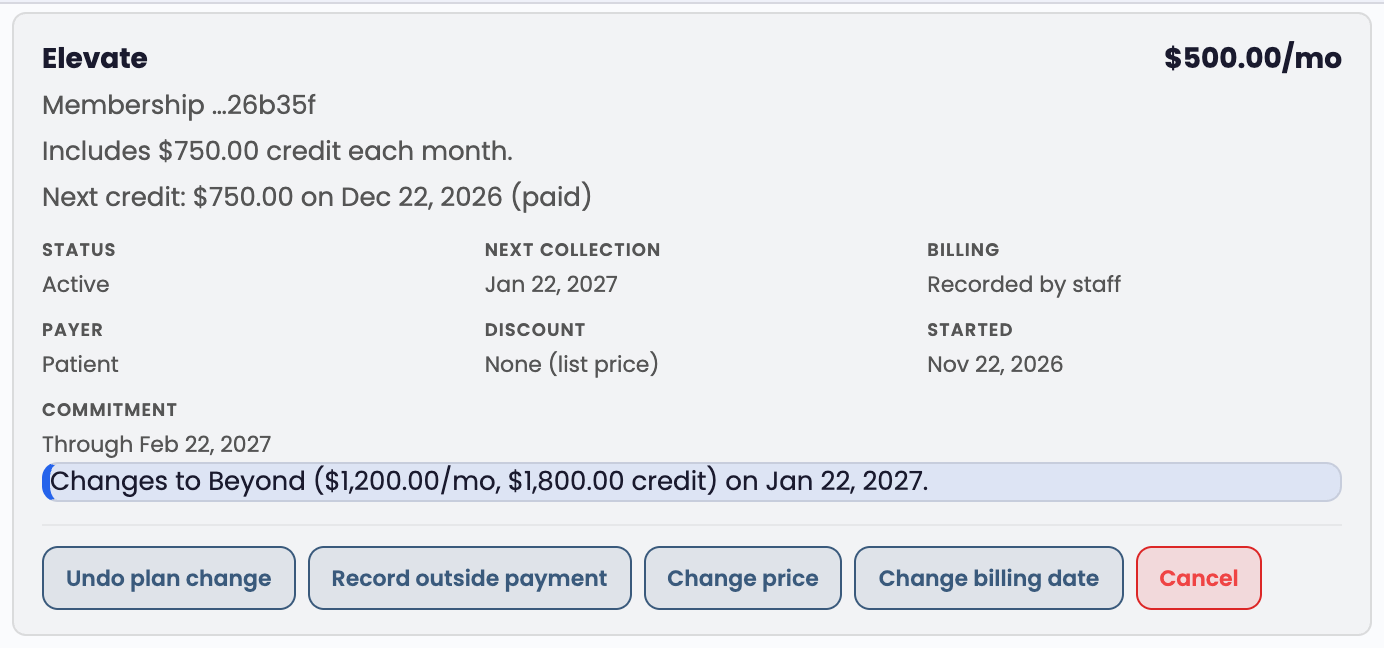
The change starts with the next month. The current month and the credit already added stay as they are, and the commitment does not restart.
Change price
Changes what this member pays from the next month. The confirmation says: "The credit stays $750.00 each month; only the price changes."
Change billing date
Moves the day the next month starts. Credit already added keeps the expiry it was added with, so moving the date later leaves a few days with no credit between the old expiry and the new start.
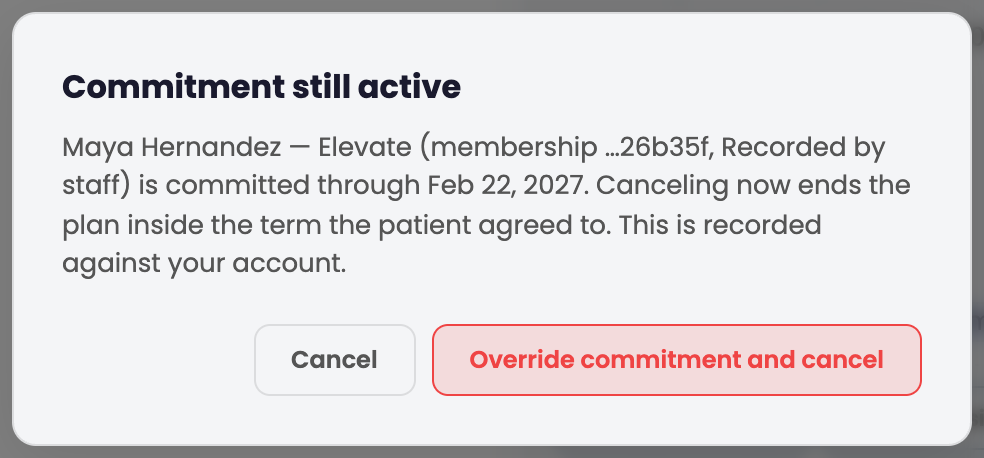
Cancel inside the commitment
Membership card → Cancel
Inside the minimum term, cancelling is stopped with a message that names the commitment end date. A manager with refund approval can override it, and the override is recorded under their name.
Comp a month
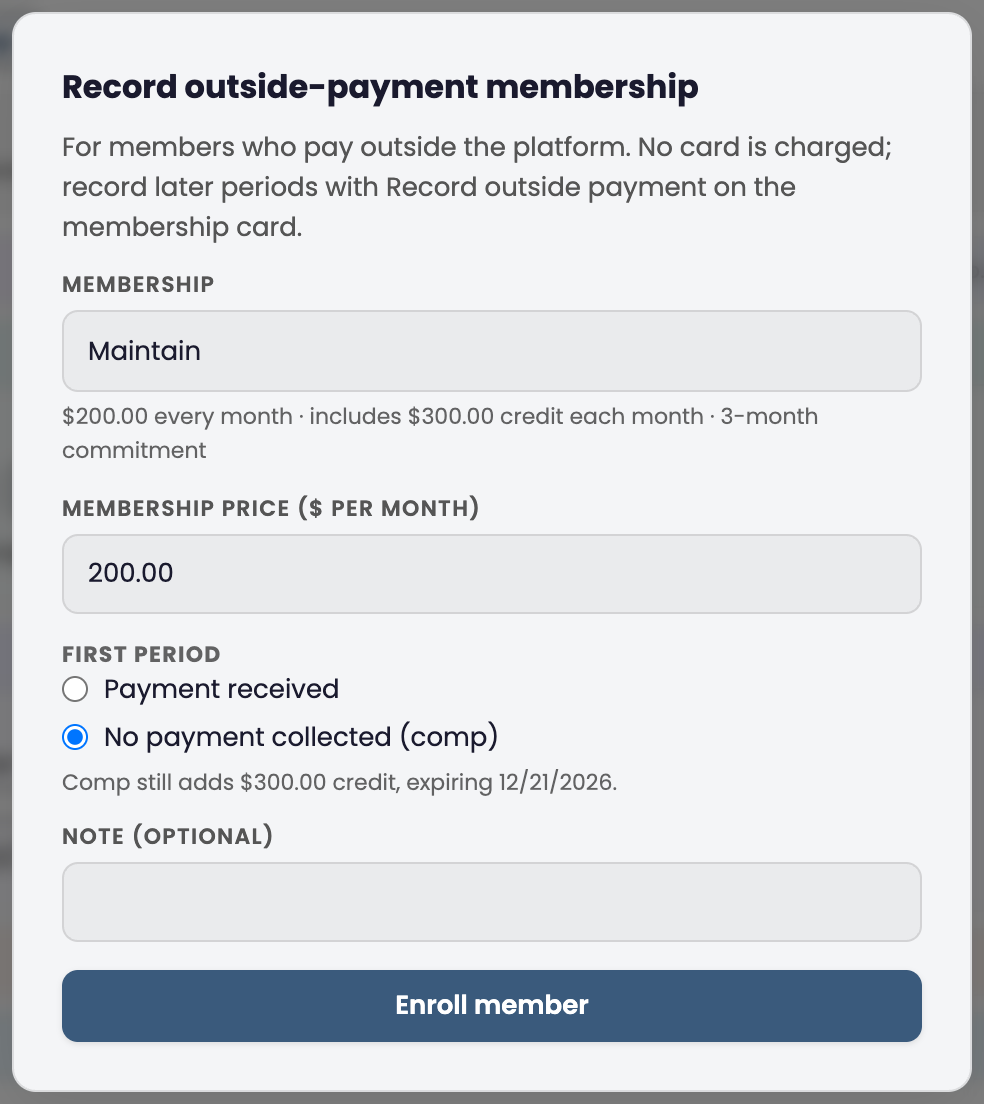
In the enroll dialog or the next-month dialog, choose No payment collected (comp). Nothing is collected and the member still receives that month's credit. The dialog says so before you confirm, and the card marks the month as a comp.
Adjust a balance by hand
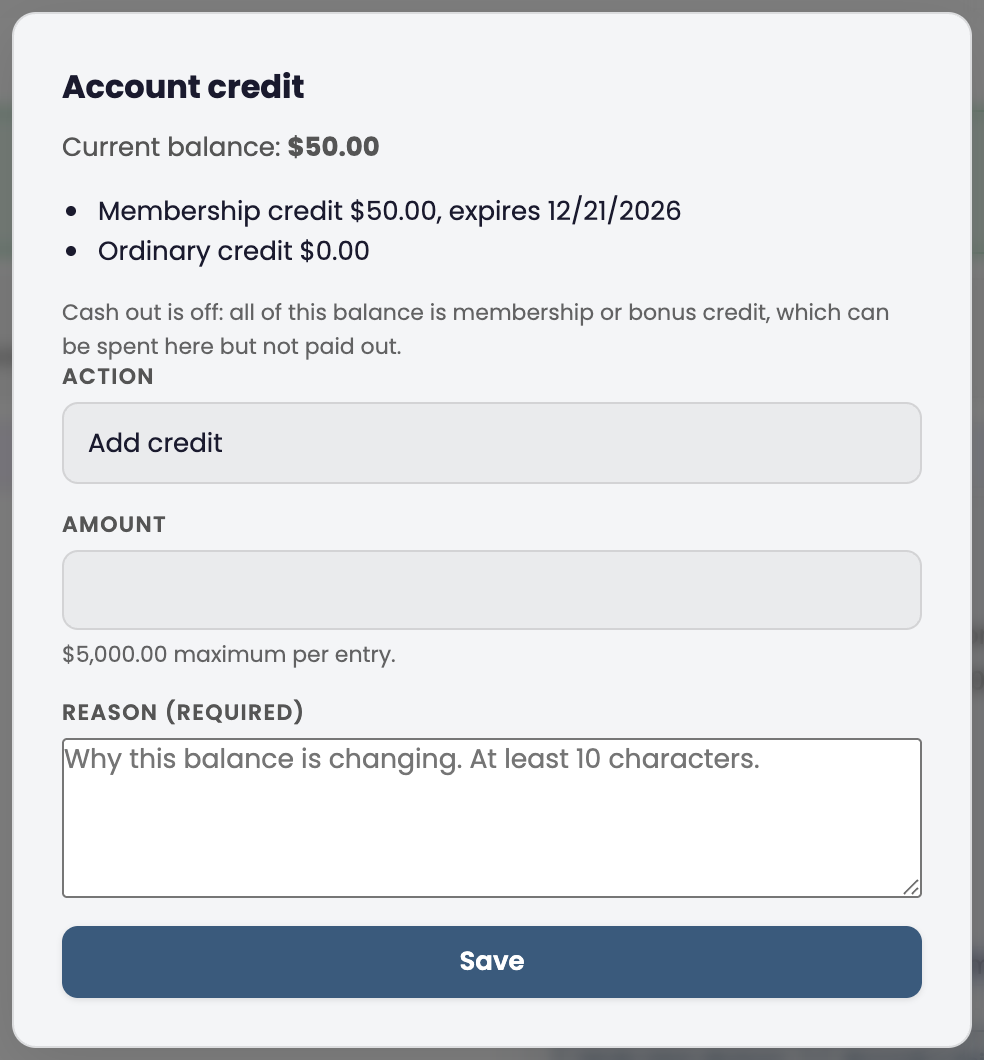
Green credit bar → Manage
For corrections and goodwill. Choose Add credit or Remove credit (correction), enter the amount (up to $5,000 per entry) and a reason. Every adjustment appears in History with the reason and who made it.
The dialog splits the balance into membership credit and ordinary credit. Membership credit can be spent at the clinic but cannot be cashed out, so Cash out is switched off when that is all the patient has.
Give one-off credit with an end date
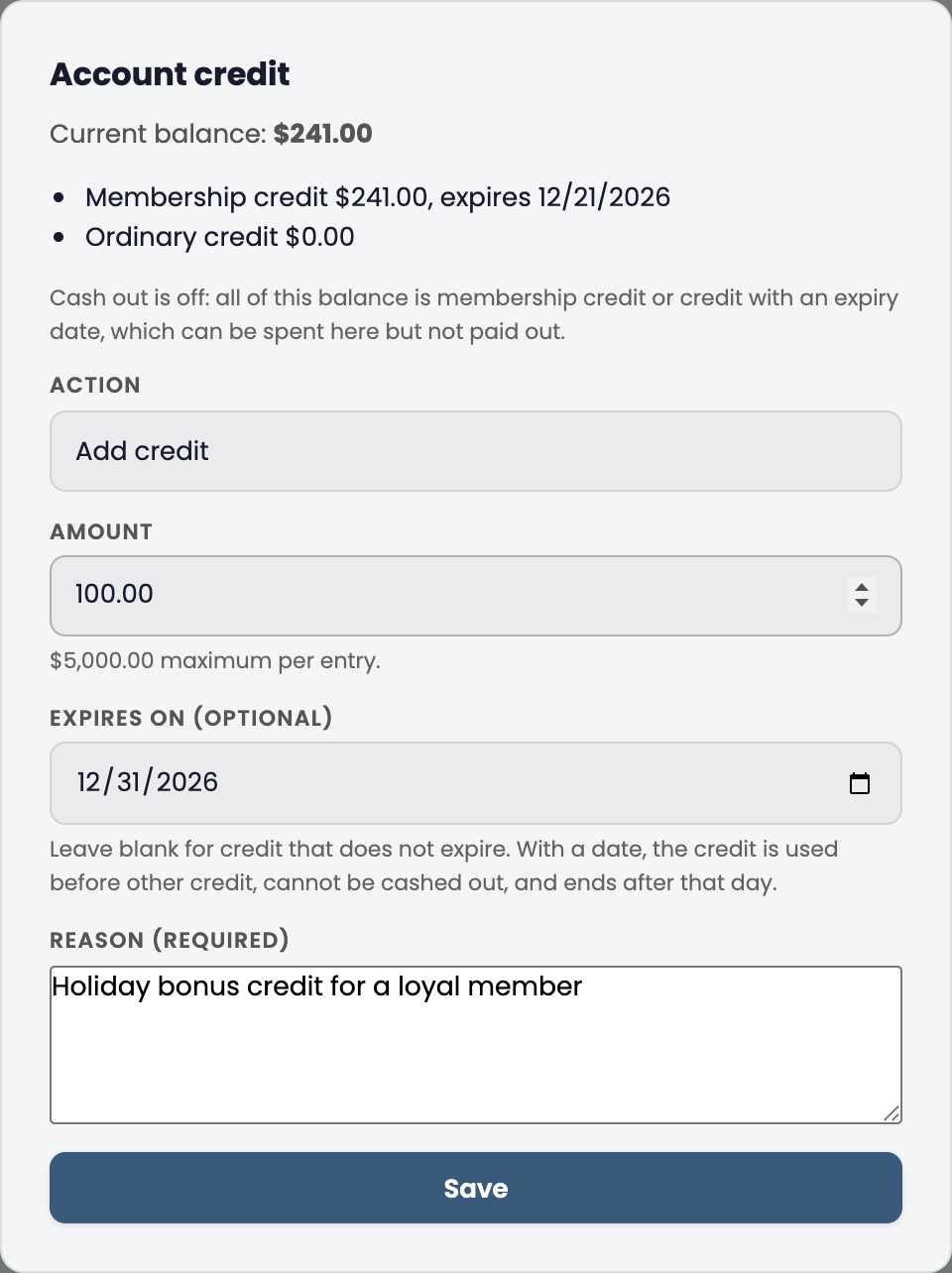
To give a member bonus or goodwill credit that runs out, choose Add credit and fill in Expires on. Leave it blank for credit that never expires. Credit with a date is spent before other credit, cannot be cashed out, and ends after that day.
When a month's credit expires unused, History shows an Expired line. A manager can restore it from that line if the clinic chooses to honor it.
What the patient sees
In the patient portal, the Billing page shows the credit balance, the date it expires, and any credit already paid for that is on the way.

Reports
Billing → Reports → Collections, and Billing → Day close
Collections shows money taken in by card, cash and check, with Paid by account credit as its own figure. Credit spent is never counted as new money collected, so the day's deposit matches what is in the drawer and at the bank. Day close counts cash and checks only.

Screens captured on a training clinic with sample patients. Dates in the examples follow a membership that started November 22, 2026.